If the Go doesn’t automatically disconnect bluetooth, then perhaps it was connected the whole time? (or trying to connect)
Did not realize we needed to manually disconnect, though perhaps by default it should not stay connected?
If the Go doesn’t automatically disconnect bluetooth, then perhaps it was connected the whole time? (or trying to connect)
Did not realize we needed to manually disconnect, though perhaps by default it should not stay connected?
Hi @vlotty, it should be fine to keep the connection. I just would like to know the condition that your Go was running on.
Our team discussed your reported case in our yesterday’s meeting. We are currently trying to simulate that condition with our Go and observe its battery life in the latest firmware (1.1.2).
I repeated the battery life test, charged as full as I could (it still seems to max out at around 90% charge), the update interval is 1 hour, and made sure to disconnect from bluetooth. Looks like battery life will still be somewhere between 24-36 hours. In about 24 hours it looks like it’s down to 20-25%.
Hi @vlotty, I tested with my Go (it’s kind of a pre-production unit anyway). I got a similar result to yours. We will discuss this further and see what we can do to improve the battery life. Thank you so much for your report!
Please feel free to let us know if you have anything to share with us. Thanks!
Hi @vlotty, I hope you don’t mind if I ask one more question from our team about the issue that you observed where your AirGradient Go didn’t charge past 90-91%. Did you see the plug-in icon appear, but it never reached 100%? Thanks!
Hi Tai,
I received my AirGradient Go two days ago and have been testing its functions. Overall, it’s a great device, but I have encountered a few issues that I would like your help with:
Auto-Wake on Charge: When the Go is powered off and connected to a USB charger, it automatically wakes up after about 10 minutes.
Charging Limit: The battery will not charge past 92%, even after being plugged in for over 20 hours using the original USB cable and a modern 65W PD charger. I also noticed a flashing icon inside the battery indicator.
Connectivity Issues:
Initially, my iPhone 16 Pro Max (iOS 27) could not pair via Bluetooth or Wi-Fi.
After several attempts, Bluetooth connected, and Station Mode successfully connected to my local Wi-Fi router. However, the AirGradient app still cannot connect to the Go over Wi-Fi.
Sometimes I have to hard reset my iPhone just to get the app to reconnect via Bluetooth. On September 26, the Go disconnected again from Power OFF, requiring me to manually reconnect through my iPhone’s Bluetooth settings before the app would recognize it.
Power Button Responsiveness: Occasionally, pressing the unlock button does not trigger the expected functions (ON/OFF/UNlock/Lock).
Hardware Test Discrepancy: During the hardware check, the Front LED test fails to turn the light ON (only the Touch 2 LED lights up). Is this because the front LED was removed in this hardware revision?
Question: What is the “Display LED” setting supposed to do? I tried turning it ON and OFF, but I don’t see any visual change or LED turning on/off on the device.
Sometime hard to understand how to select the operation mode, if there is a details operation user manual for reference?
Could you please review these points and let me know if these are known bugs, hardware limitations, or if I need a replacement?
Thanks for your support!
I think so-- I’m charging now and the plug-in icon is there. Will see what happens when it stops charging.
Hi @Alan_Ng, thank you so much for your feedback.
Auto-Wake on Charge: This is normal in the current firmware. The AirGradient Go will automatically wake up when the USB-C is plugged in.
Charging Limit: The issue you observe looks similar to @vlotty’s report. Please let our engineer investigate this further.
Connectivity Issues: Could you please provide us with more details on
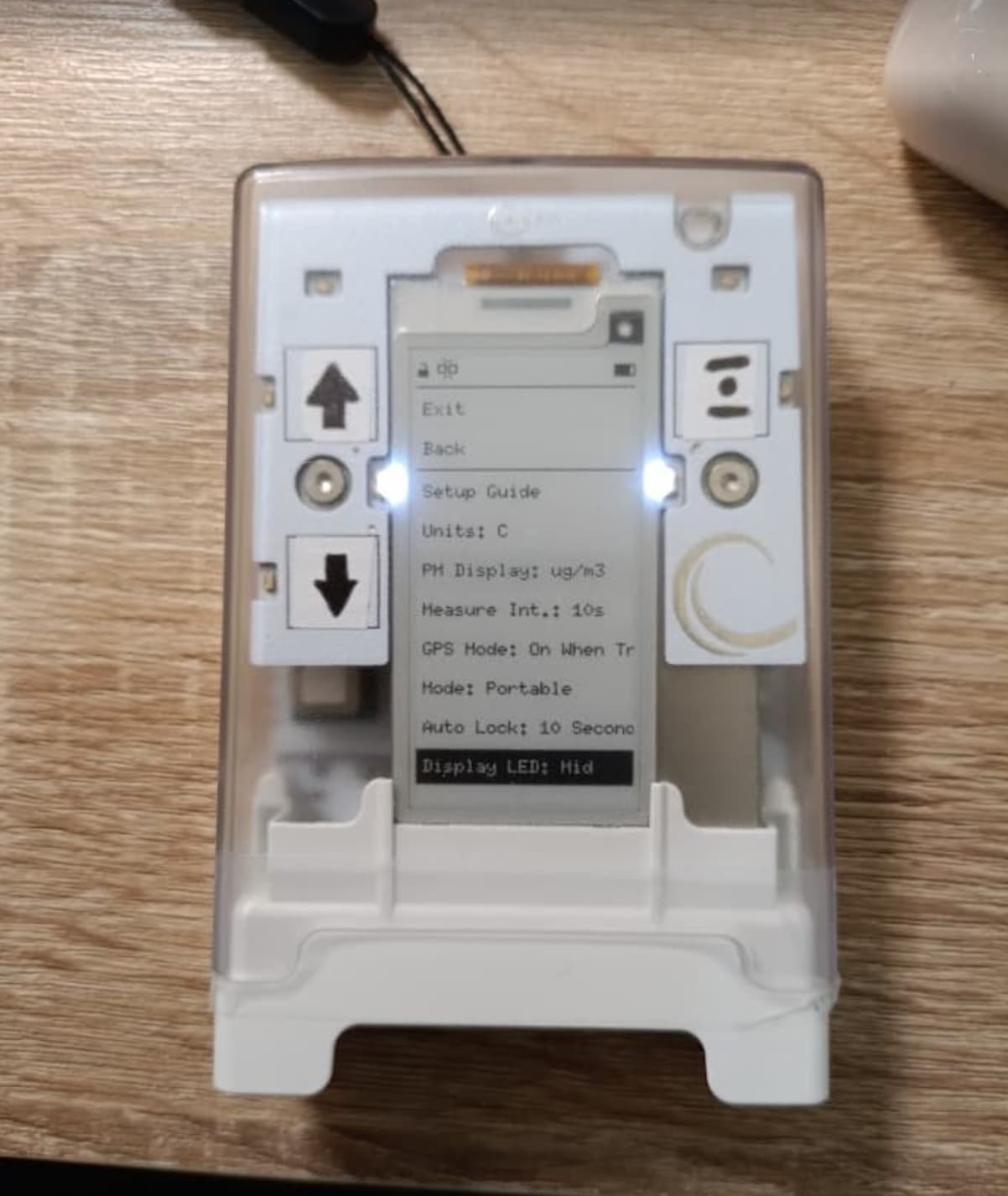
Regarding your question about the ‘Display LED’, they was supposed to illuminate the display, but we ultimately decided to get rid of them. Here’s what the ‘Display LED’ looks like:
Regarding the Operation Mode part, you can visit this article to learn more: AirGradient Go: Operating Modes | AirGradient Knowledge Base
Please feel free to report to us if you experience any issues. Thank you!
Hi @vlotty! The engineering team wanted to know if by “battery life test” you meant that you fully ran the “FG Learning” hardware test?
No, it was just by fully charging as much as I could (to about 90%, then the device stops displaying the plug/charging icon), then just seeing about when it says “battery level critical”.
Hi @vlotty, thanks for your reply.
Could you share a bit more with us about which USB charger you used and observed that the plug icon disappeared after the battery reached 90%?
In the meantime, I will try using different chargers with the Go and observe how my Go behaves.
Thank you!
It charges to 90% and then stops charging with a few ways I’ve charged, using the Go’s included USB-C cable from my MacBook (recent model, Apple silicon), with an Anker 30W charger with USB-C PD and the Go’s included USB-C cable , a Baseus 65W charger using an USB-A to USB-C cable, and a 5V/3.5A outlet USB-A port and USB-A to USB-C cable.
Hi @vlotty, hope you are having a nice day! Thank you for providing this info.
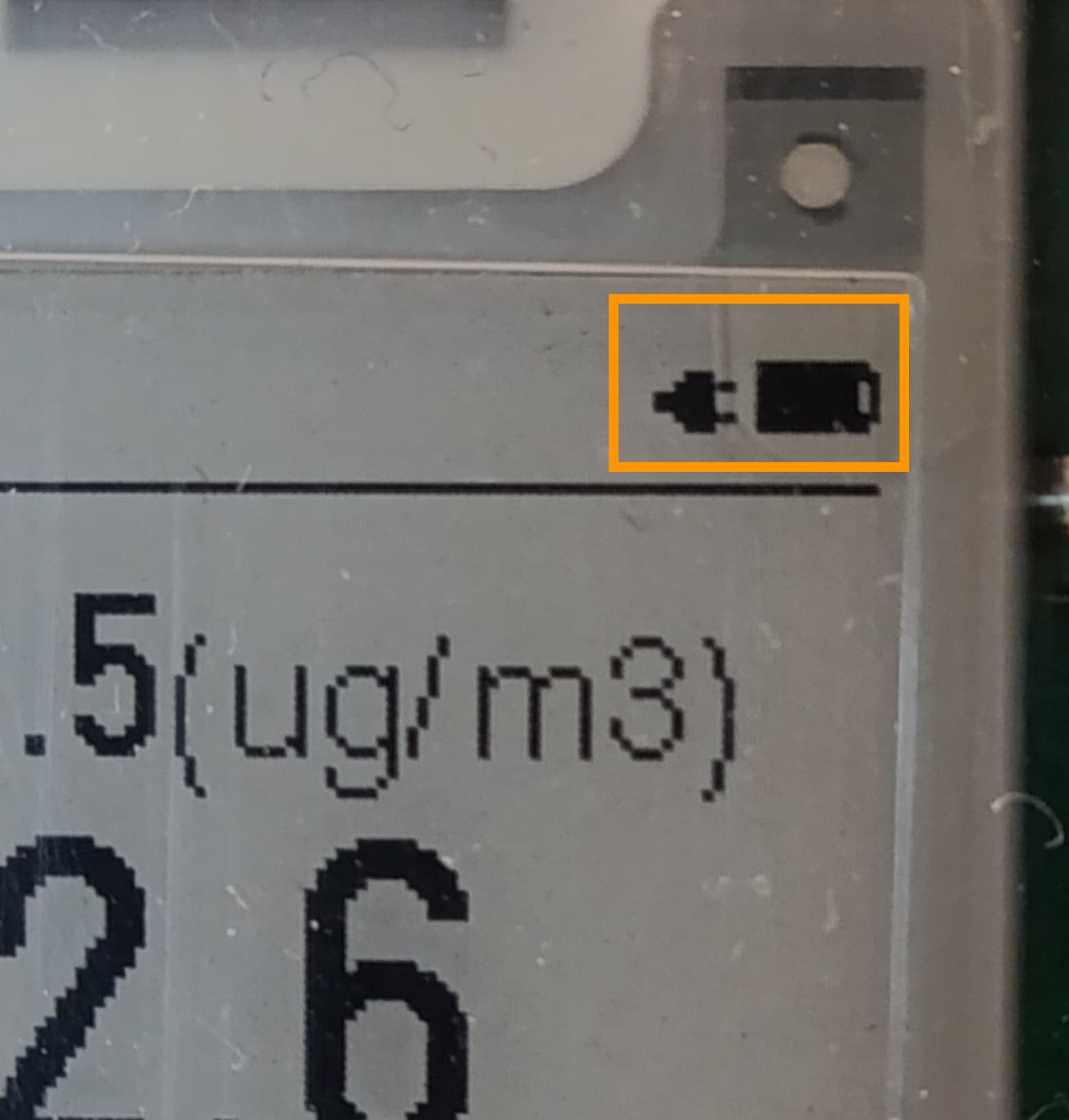
By ‘stops charging’, do you see these two indicators in the top right of your screen, or does only the battery indicator show without the plug (please see image below)?
I just would like to make sure again, but from your previous reply, it seems that only the battery indicator shows, with no plug or battery charging indicator - just the normal battery indicator alone. Do I understand correctly?
The battery FG Learning (fuel gauge learning) is also something we can try, but it takes quite a long time (could be a day or two), and you will not be able to use your AirGradient Go during that time which is quite a disruption for users. I am going to have a meeting regarding the battery and the FG Learning today. Maybe let me gather more info, and I’ll let you know.
It looks like the image you shared, a plug and a battery, but no charging indicator.
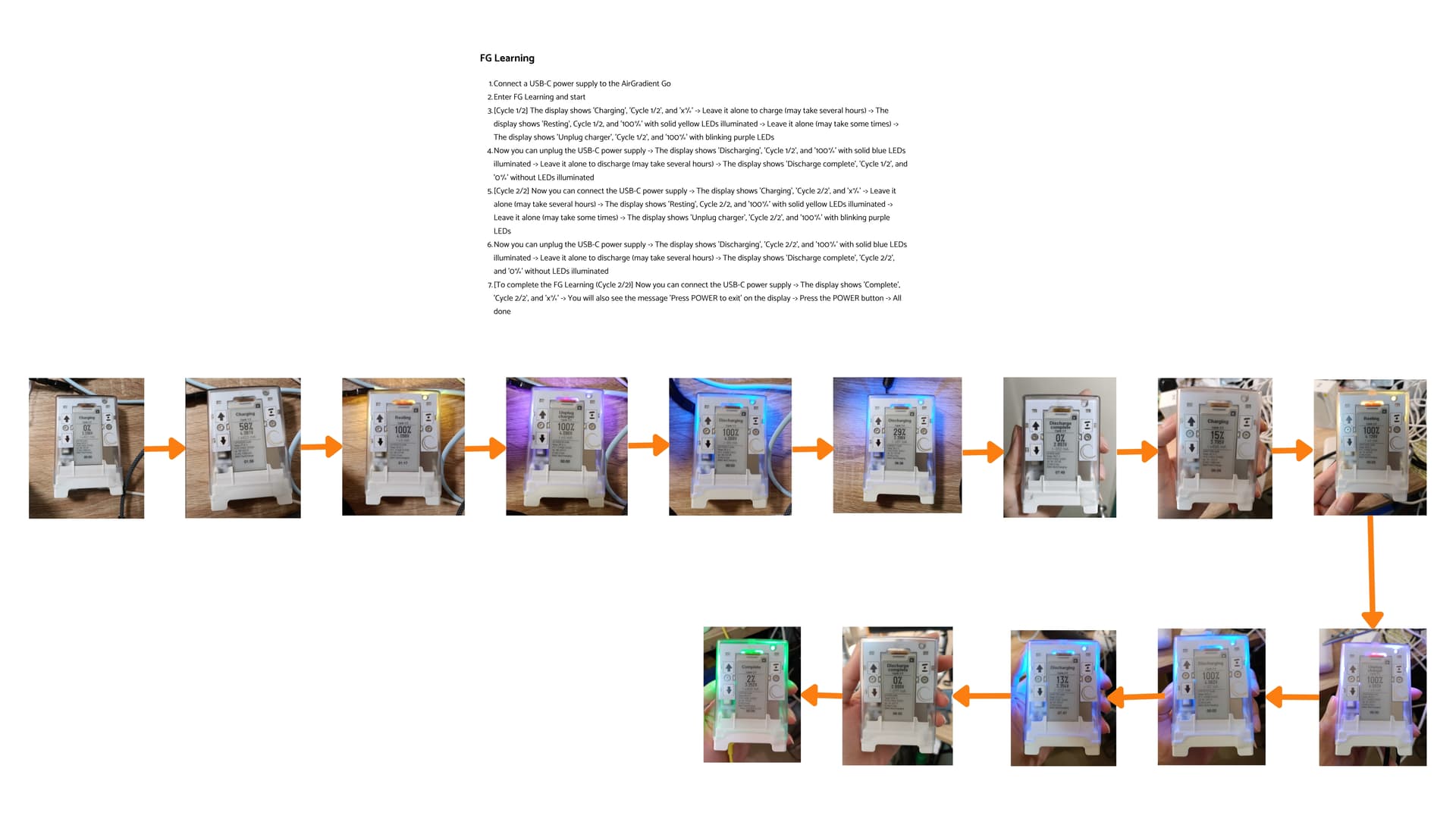
Hi @vlotty, thanks for the reply. I discussed this with our engineers, and they suggested that battery FG Learning (Fuel Gauge Learning) could help in this case.
However, the process takes quite a long time (approximately 24+ hours), and you won’t be able to use the Go during the process.
To run FG Learning, follow the steps below:
Please feel free to let me know if you have any questions.
Good day!
The case should be changed so it they could actually lightup the diplay… :)…without a led dispay is not readable half a day… we need new case for unit anyhow to fix temperature.
And better gos antena… As no a joke of devices thinks it has a fix with +/- 500m iit is as accurate as temperature…
Product it not ready dor anything…
I hope we receive fixed and updated parts… Someday.
I’ve completed the FG learning, although I’m not quite clear on what it’s supposed to do-- is it just battery calibration? The device indicates somewhere between 8-9 hours to discharge fully. I suppose we will see if it helps with battery life-- I’m not sure calibration is why it would only last about 1-1.5 days instead of many days/weeks on the lowest sensor update frequency as the simulator had predicted?
Hi @vlotty, you are right, it is a battery calibration that helps the Go read the battery percentage more accurately.
After I ran the FG learning, the Go lasts about 3 days at a 1-hour interval (previously lasted only a day). Anyway, as you mentioned, it is still less than expected.
We will discuss this further in our meeting and will let you know the update. Thank you!
After running the FG learning, it doesn’t seem like battery life has improved (at least not noticeably), still about 1-1.5 days, with sensor update frequency set at 1 hour.
Just jumping on here. I asked Sam our developer to look into this and make a special program that dynamically adjust measurement frequency based on if the Go moves or is at the same place. He would also check if we actually do not somewhere waste battery.