[Please also see the update in the bottom of this reply]
Hi @drowsy !
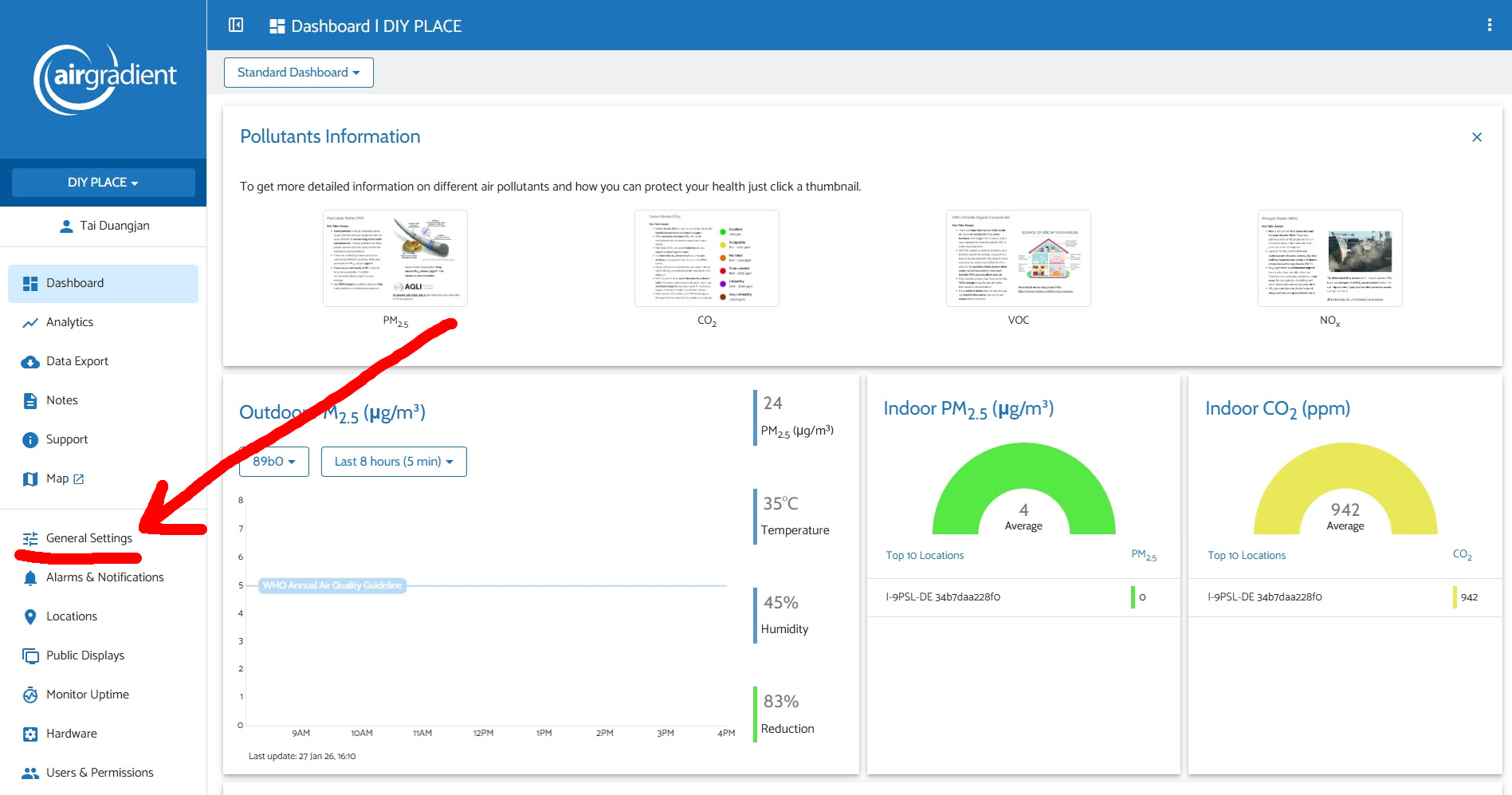
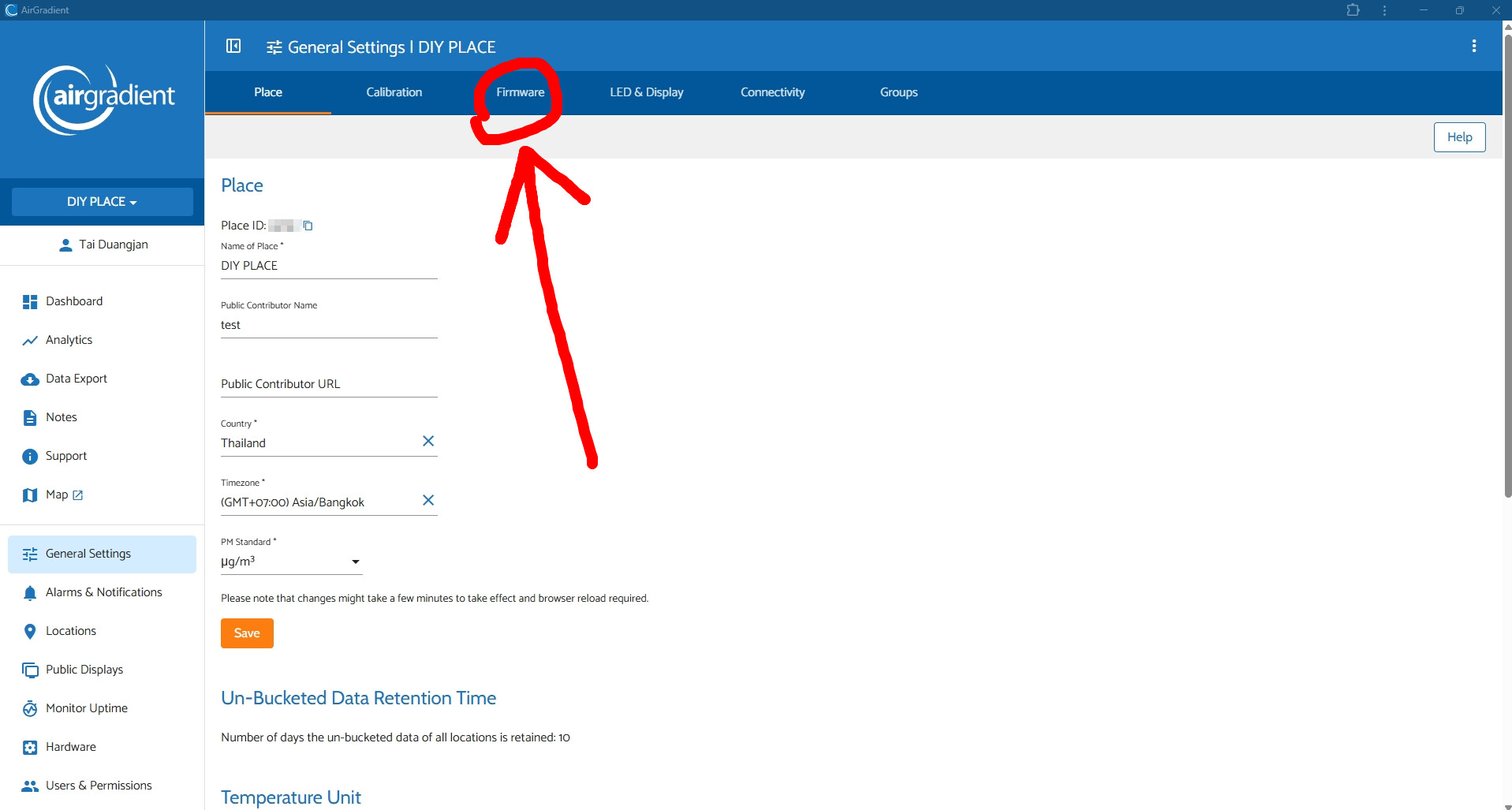
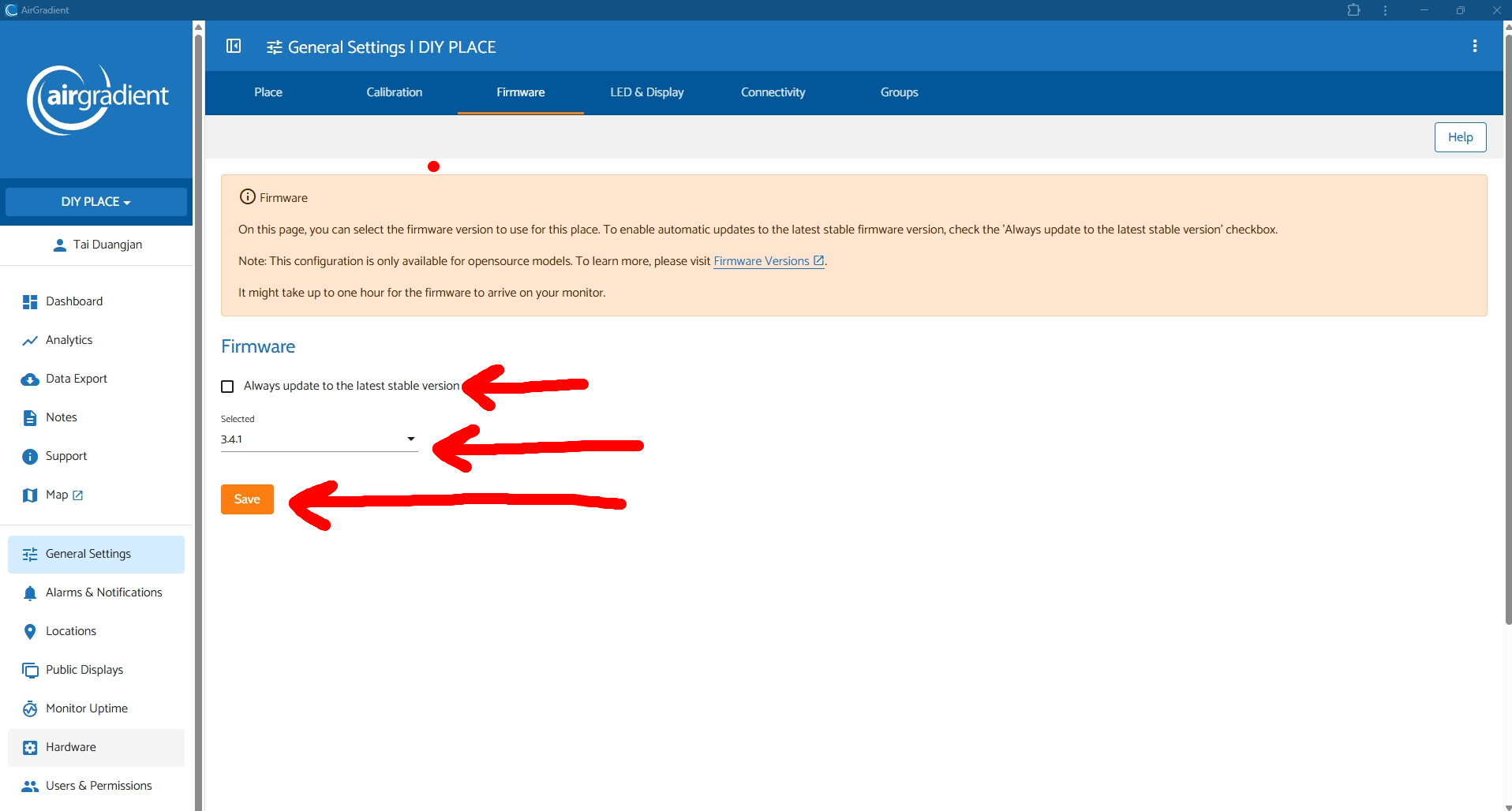
You are right. AirGradient monitors connect to AirGradient’s cloud if you use the Dashboard.
In case you don’t use AirGradient Dashboard (only have the monitors connected to Home Assistant, for example), the most convenient way you can downgrade the firmware is connecting your AirGradient monitor to your PC and using our web firmware flashing tool (everything can be easily done via a web browser like Chrome): AirGradient ONE (I-9PSL), Open Air (O-1PST) and Open Air Max (O-M-1PPST...) Firmware Versions
You can watch a quick video guide here for the AirGradient ONE: https://www.youtube.com/watch?v=cxCt3U4qsZE
For the Open Air: https://www.youtube.com/watch?v=L6oY8jS-1Do
Please note that the latest firmware available for the AirGradient ONE/Open Air on the web flashing tool is v3.3.8.
I hope this helps!
EDIT (2026-01-31 19:37 UTC): I’d like to put more details here.
For those who are not intended to use AirGradient dashboard (want the monitor to work locally without connecting to the outside world, e.g., Home Assistant). You can follow this:
Please check the ‘Erase device’ box shown in the flashing process.
Note that ‘Erase device’ will delete all configurations saved in your monitor’s ESP32. So you will need to onboard (reconnect) your AirGradient to your Wi-Fi again and need to reconfigure the settings saved on your AirGradient monitor.
- After the web flashing tool displays success. You can power cycle (unplugging and plugging in) your AirGradient monitor. Its Wi-Fi portal will be opened for you to onboard the device (connect the monitor to your Wi-Fi).
In this step, please make sure you check the ‘Prevent Cloud to AirGradient Server’ box. This will cut your monitor off of the outside world and should never update a firmware itself.
Currently, this is the only easy way to completely disconnect your AirGradient monitor from AirGradient’s server (where the monitor pulls an OTA firmware from). Simply put, you need to check this box only during the onboarding process to completely block any connections to the AirGradient server (including firmware updates).
There is also a more advanced way to do this is to block your AirGradient monitor from accessing the router’s WAN in your router settings.