Hi @matrikss , welcome to the community!
There may be an issue with the web flashing tool. Could you please try manually installing firmware 1.1.2 using the steps below?
- Download the firmware
Go to our firmware 1.1.2 release page:
Under the release assets, download:
airgradient-go-firmware-1.1.2.zip
- Unzip the firmware package
Extract the downloaded ZIP file.
Inside the extracted folder, locate this file:
airgradient-go-merge.bin
This is the binary file you will need for flashing.
- Connect the AirGradient Go
Connect your AirGradient Go to your computer using a USB cable.
- Open the Espressif flashing tool
Using Chrome or another Chromium-based browser, open:
https://espressif.github.io/esptool-js/
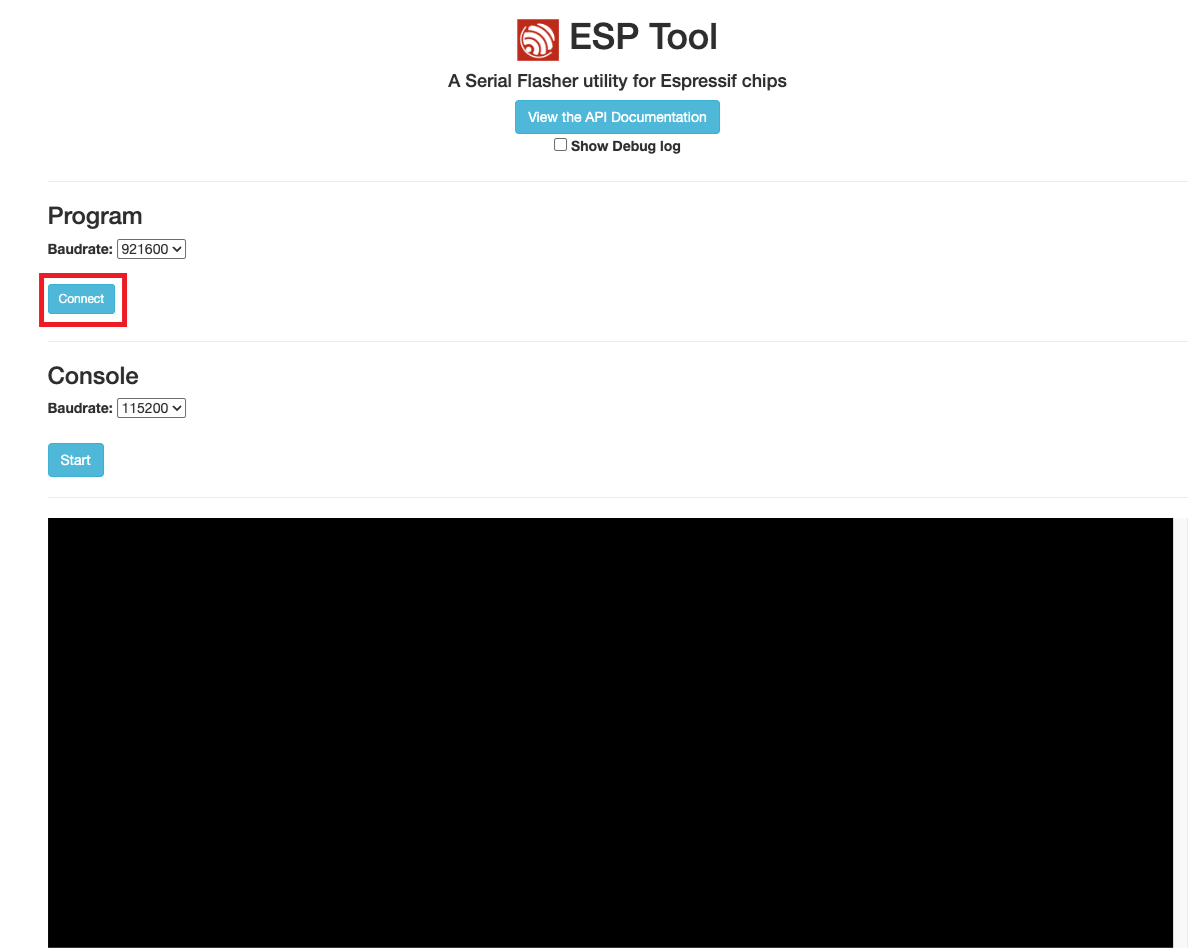
- Connect to the device
Click Connect .
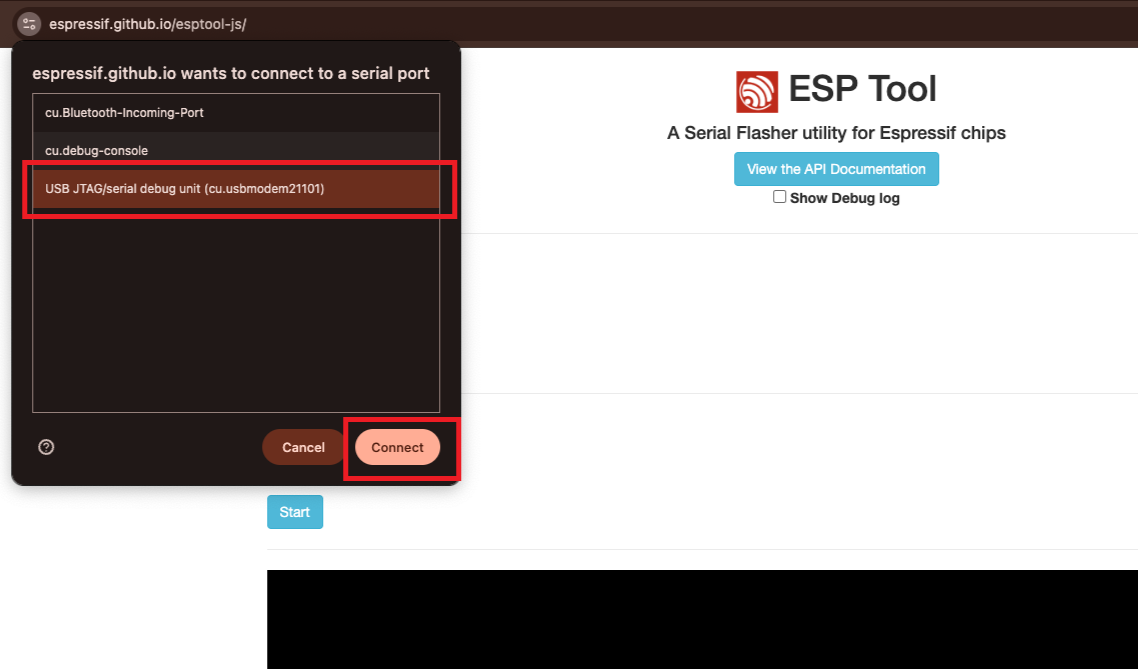
Your browser should display a list of available serial/USB devices. Select the port corresponding to your AirGradient Go and confirm the connection. This is usually “USB JTAG”.
- Select the firmware
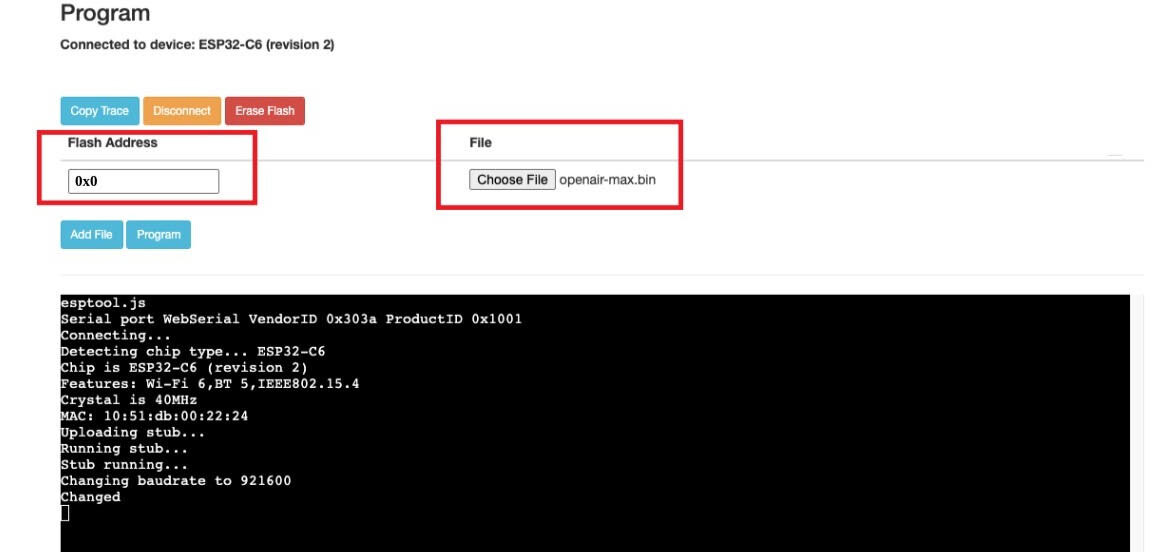
In the flashing tool, set the Flash Address to:
0x0
Click Choose File and select the airgradient-go-merge.bin file that you extracted earlier.
Leave any other settings untouched.
- Start flashing
Click Program to begin flashing the firmware.
Please leave the AirGradient Go connected while the process is running.
- Wait for the process to finish
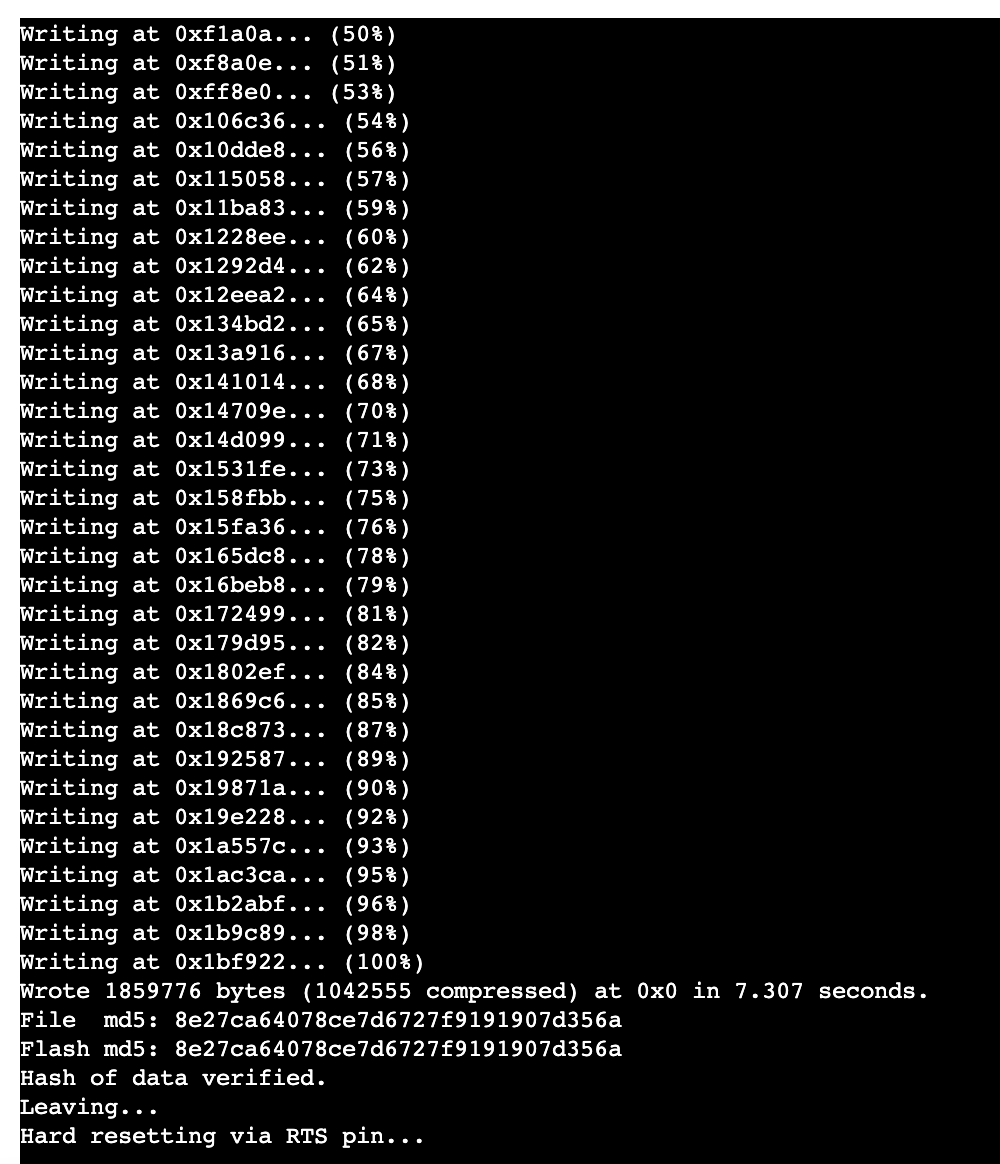
Once the log reaches:
Hard Resetting via RTS pin…
the flashing process is complete.
You can then disconnect the AirGradient Go. It should automatically reboot with firmware 1.1.2 installed.
Please give this method a try and let me know what happens.
I’ve already flagged this with the team and the tool on our website will be fixed.