AirGradient Forum

Issue with new Outdoor kit

Hi. Just received my new outdoor (O-1 PST) kit and I set it up the same way as the indoor one I received a week or two ago, but it’s not showing up on the dashboard online.

I do the wifi setup and I can see it connected to my Wifi network, but no data is showing up on the Dashboard and it’s listed as Offline.

If I power cycle it it blinks blue 4 times (and does this three times), then it blinks blue 5 times (and does this 5 times) and then just sits there. The other LED that’s on the other board also is occasionally blinking yellow or orange (very briefly).

I also tried a factory reset and did all of the above again, and the same thing is happening.

And finally I’m trying a firmware update/flash but it seems to be hanging at the ‘Preparing installation’ step/stage.
Hello @McCleason, welcome to our community!

It seems your O-1PST connected to your Wi-Fi network properly, but it doesn’t appear online on the AirGradient Dashboard. Please don’t worry, I will guide you through the troubleshooting.

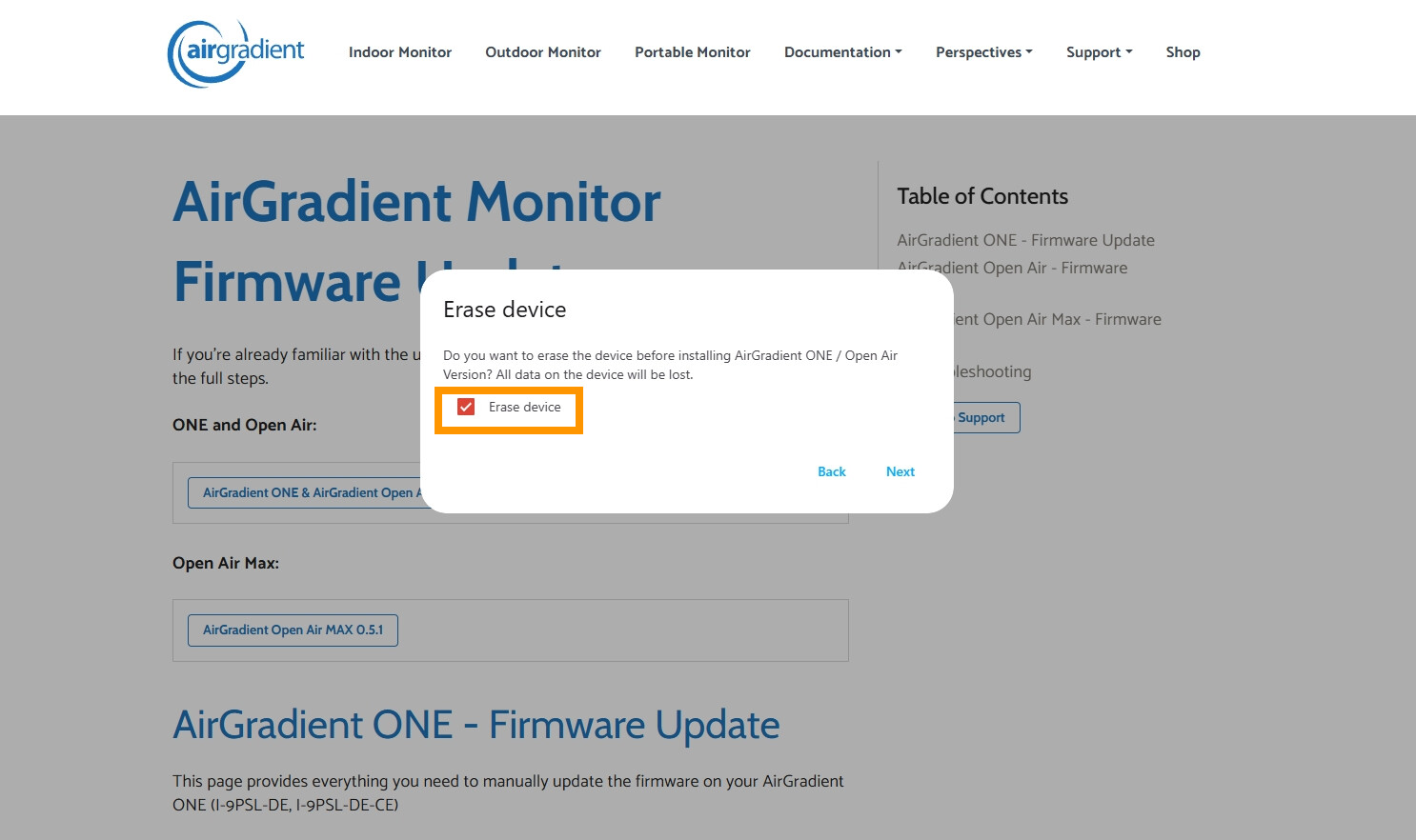
First of all, let’s try reflashing your firmware again. The ‘preparing installation’ hang might sometimes happen, but it should not be a problem. You can try to flash your firmware again via this link: AirGradient Monitor Firmware Updates | AirGradient Knowledge Base. Use the firmware for “ONE and Open Air”. This time, try to check the ‘Erase device’ box, and proceed as usual. You can repeat the steps if the flashing tool still hangs.

After you have the firmware installed, connect your O-1PST to your home Wi-Fi as usual (more details on Connecting Your AirGradient Open Air to WiFi | AirGradient Knowledge Base )

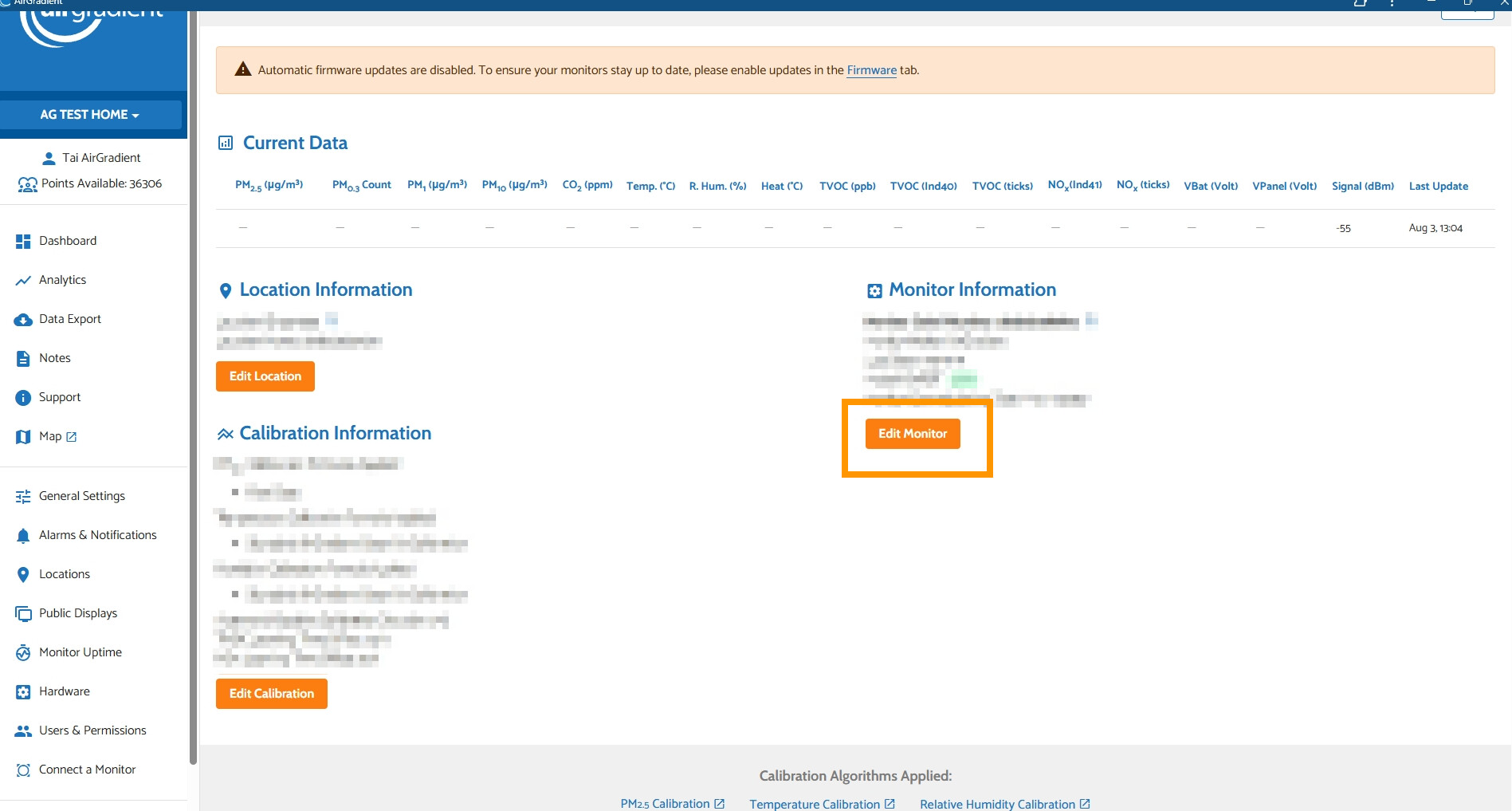
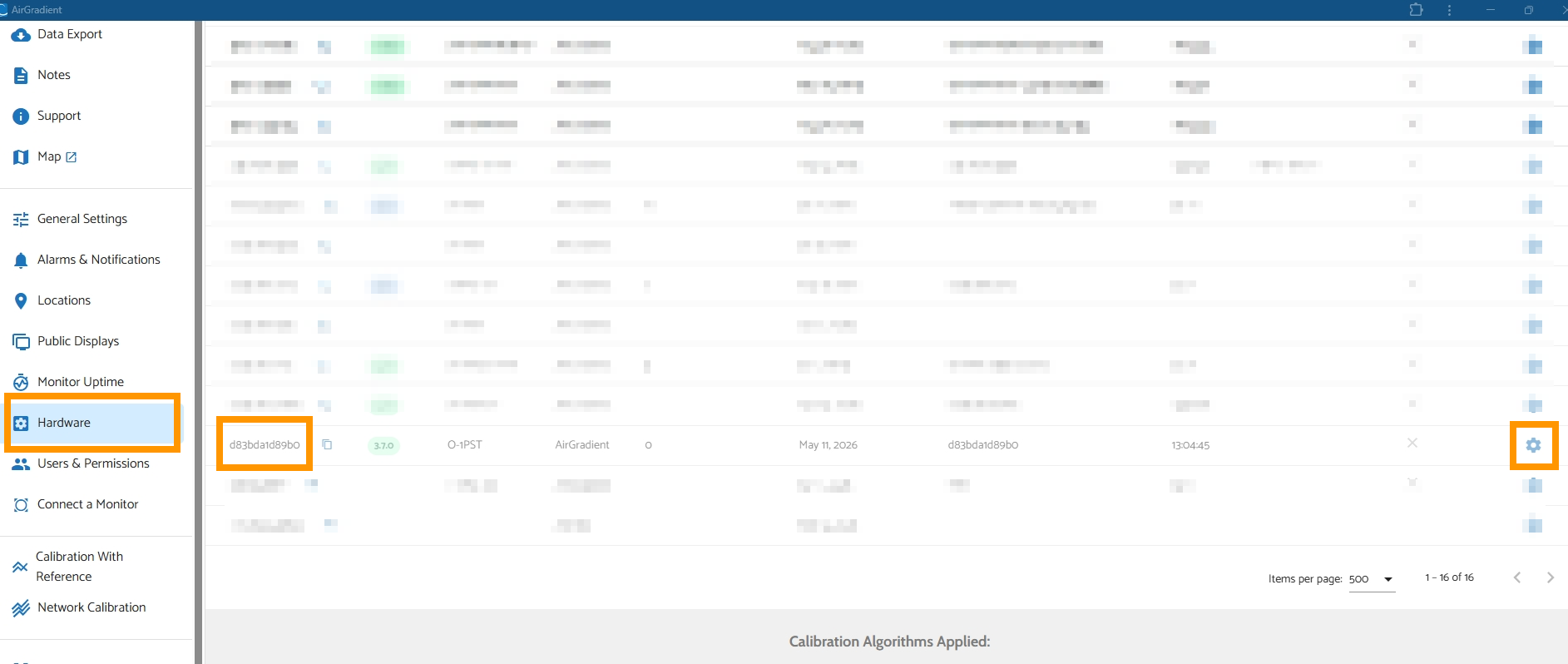
And now, the important step is checking if the air monitor is properly registered on the AirGradient Dashboard. Please go to your Dashboard > select ‘Hardware’ on the side menu > check that the serial number you input is correct. You can check your O-1PST’s serial number by following the tutorial below (both Method 2 and Method 3 work for your O-1PST, select one). If you find that the serail number is not correct, tap the gear icon on the Hardware menu on the AirGradient Dashboard, then click ‘Edit Monitor’ to edit the serial number.

You can learn more about registering your device to the AirGradient Dashboard in this articles:

Please feel free to let me know if you would like me to provide further assistance. Thank you!

Additional note on the blinking yellow LED on the board: it comes from the SenseAir S8/S88 CO2 sensor, which is in its normal operating state. Please don’t worry.