Hi @mckeont, to manage all monitor in a single centralized dashboard, as well as give the accessibility to the residents, you can add more users to your dashboard and assign user-specific permissions. Each user will have to create their own AirGradient account (with their own email) to join your centralized dashboard, so you don’t have to share your credentials (email & password) with them.
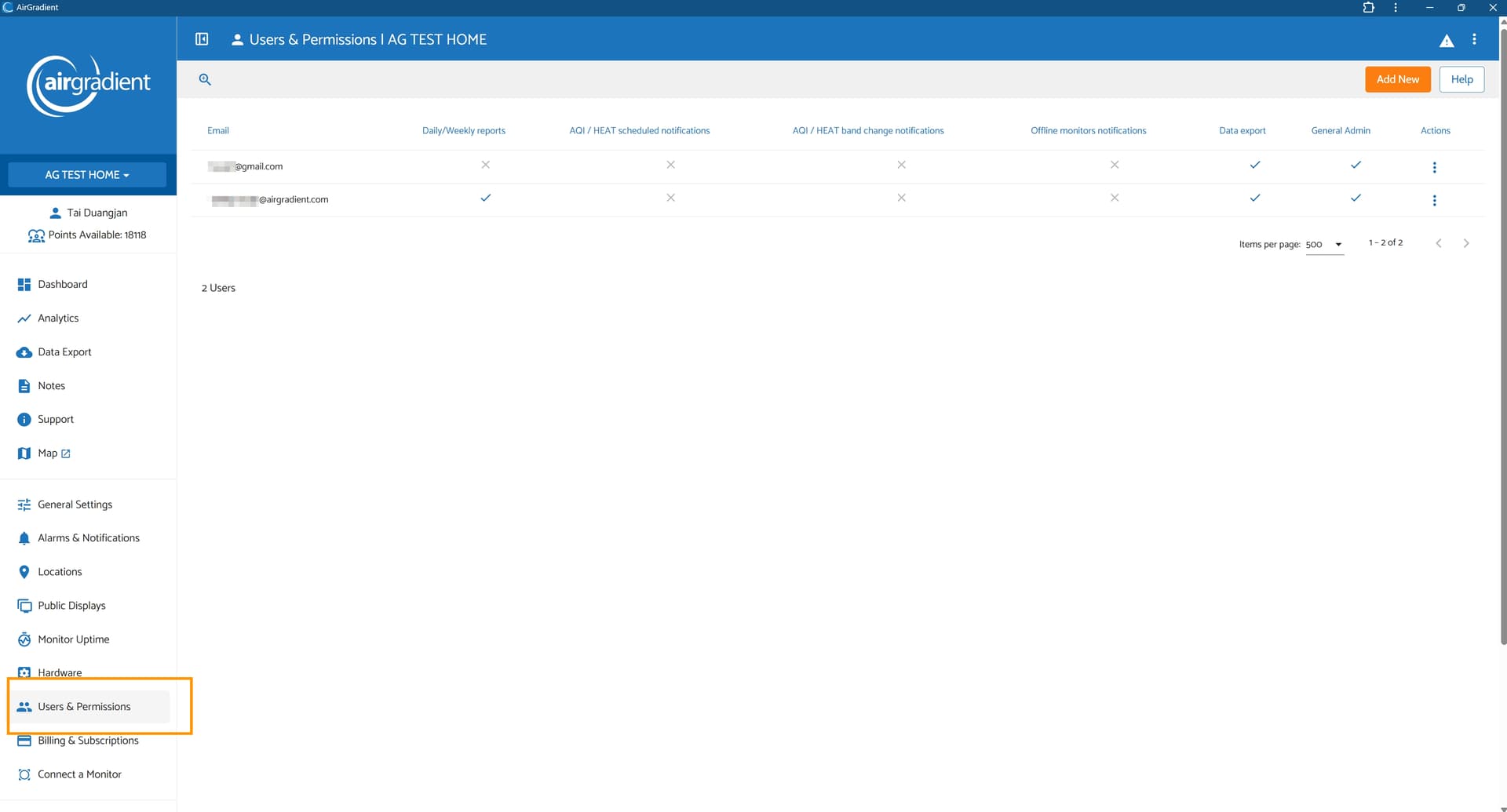
You can do this in ‘User & Permissions’ menu on the AirGradient Dashboard:
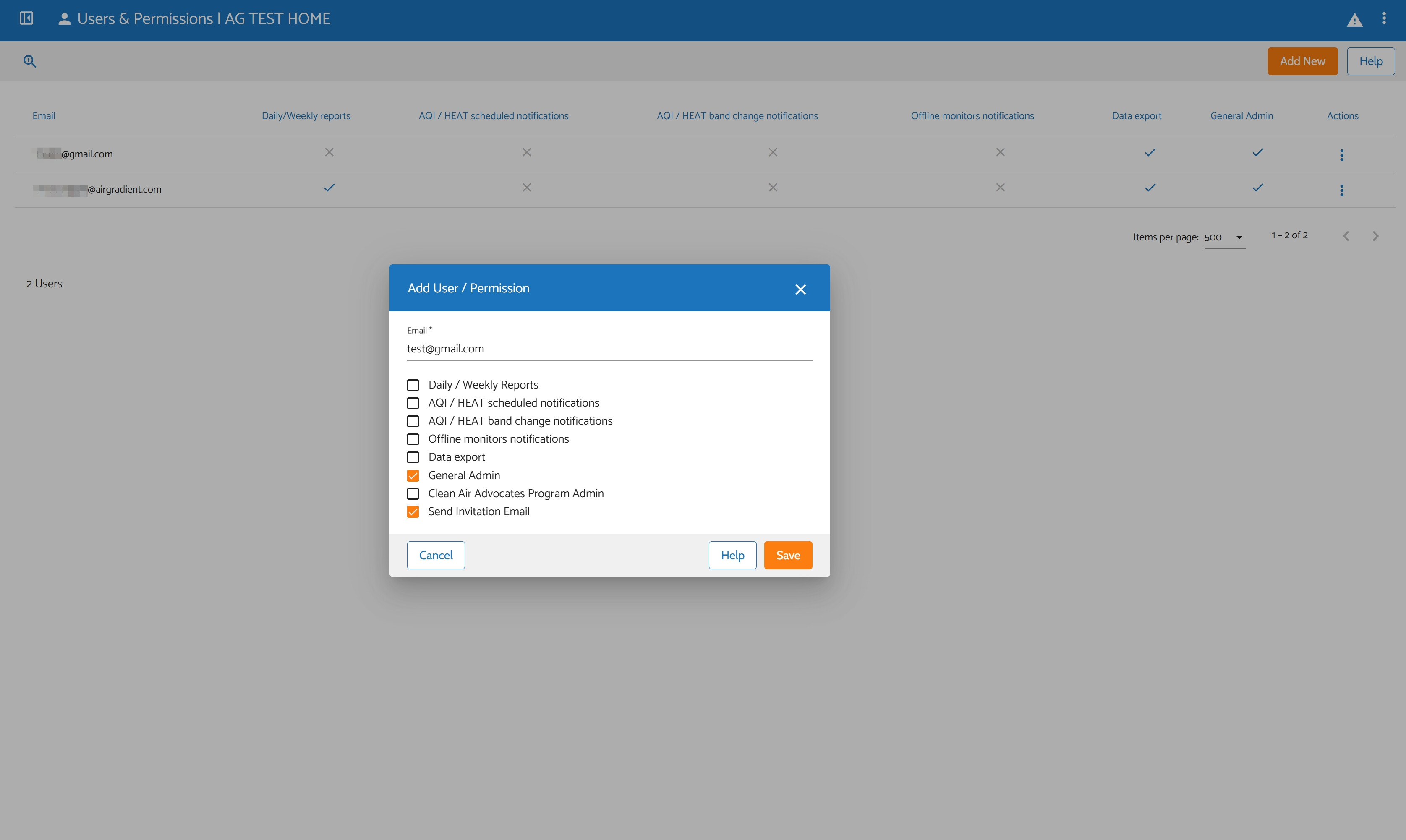
When you click ‘Add New’ at the top right of the page, you’ll be able to add an email and assign specific permissions to the account associated with that email address.
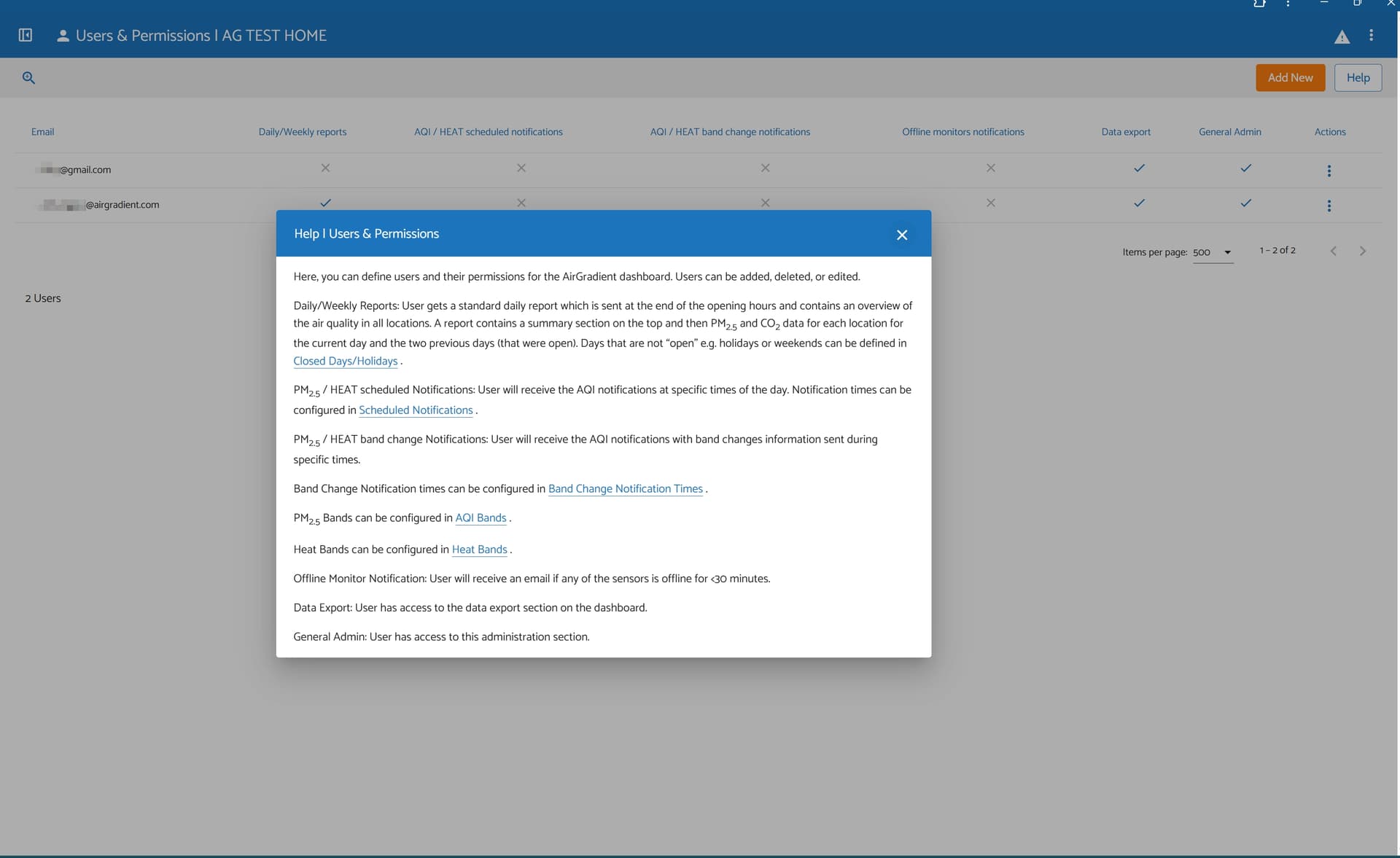
The highest rank here is the General Admin who will be able to manage everything in this Place ID (the whole dashboard). General Admin can connect a new monitor to the dashboard, can remove, unlink, ect.
Also might be worth mentioning, there are some terminologies used in the Dashboard that I think is good to know:
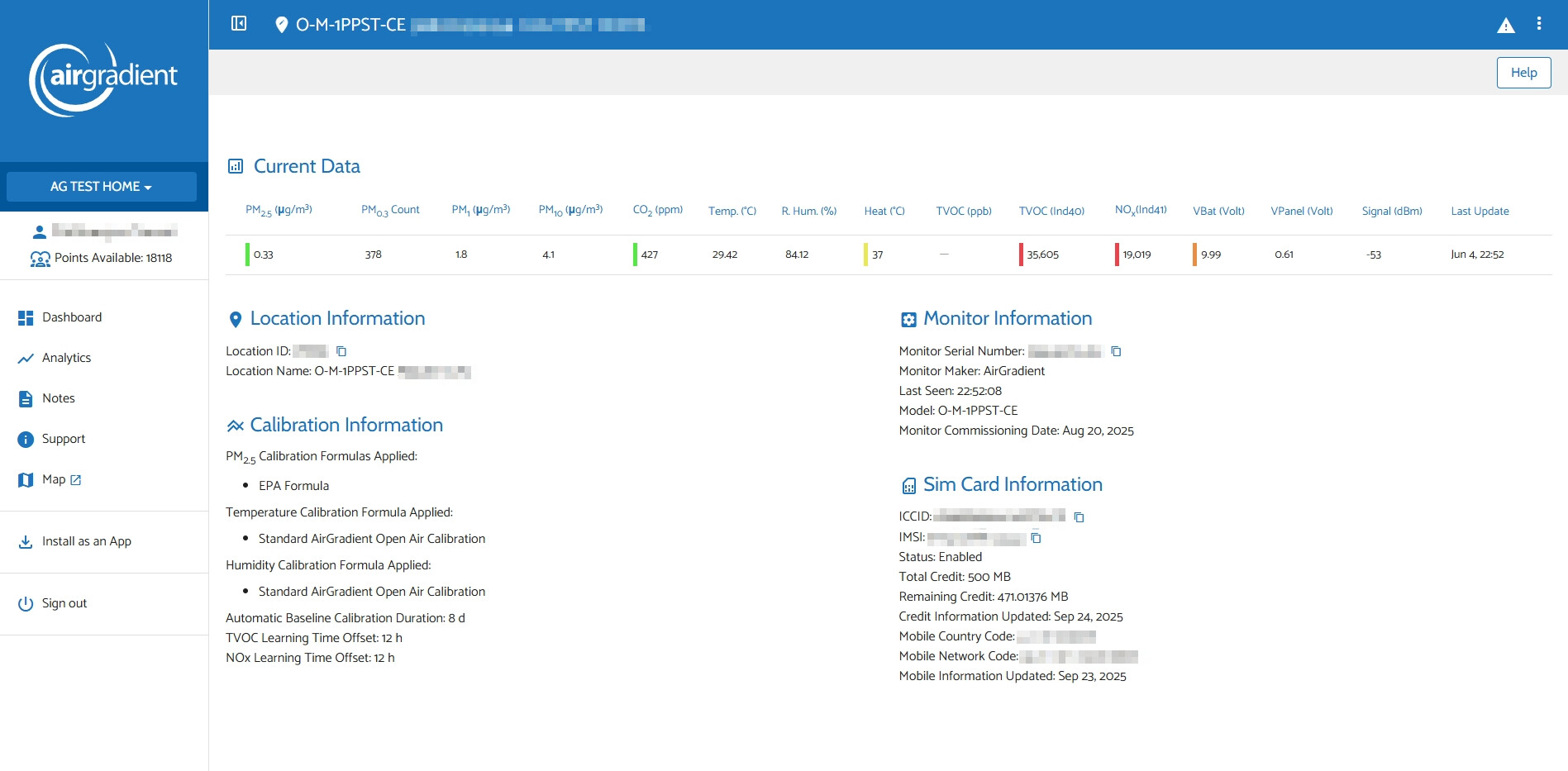
"Place" is the whole dashboard. A Dashboard has only 1 Place ID. You can see your Place ID in ‘General Settings’
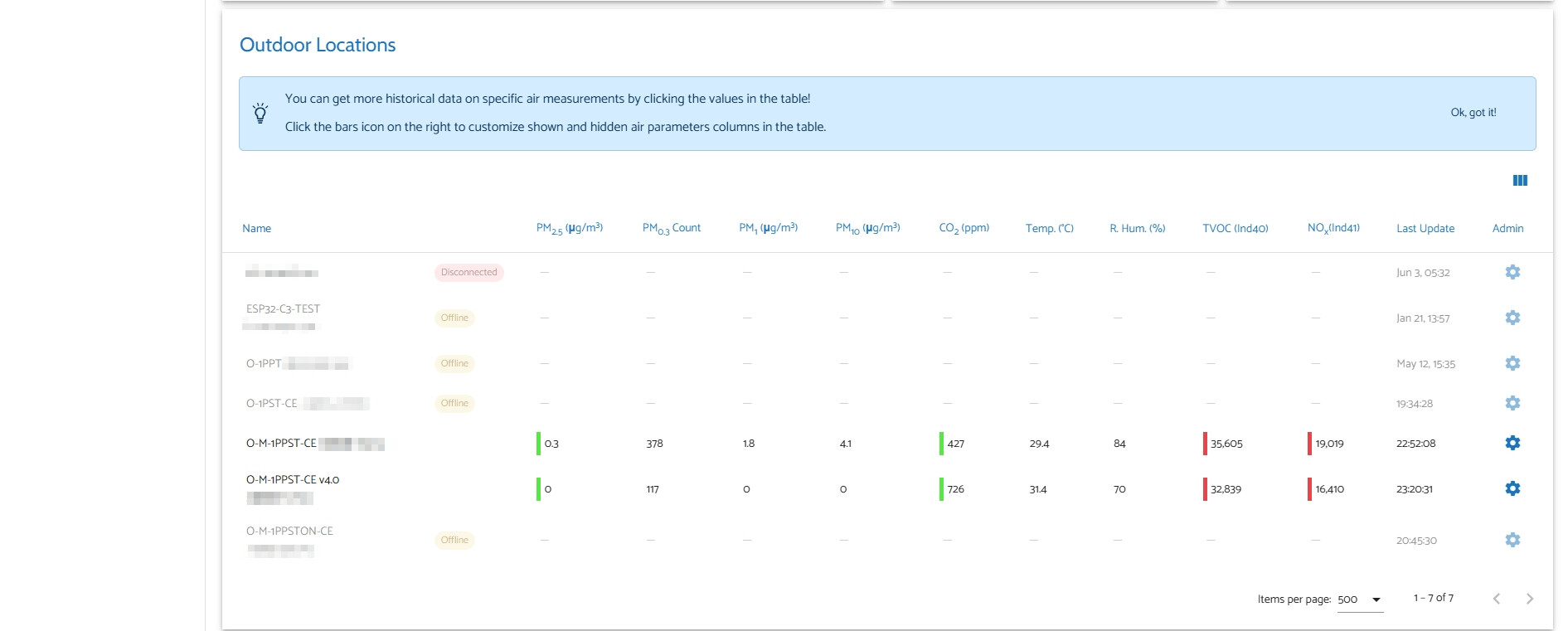
"Location" is where an AirGradient monitor linked to. You can set up location name to your needs. Locations always need a ‘Hardware’ (a monitor) linked to be active. If there’s no ‘Hardware’ linked, ‘Location’ will just gray out, shows no numbers.
"Hardware" is each monitor themselves. You will have to assign (link) each ‘Hardware’ to a specific ‘Location’
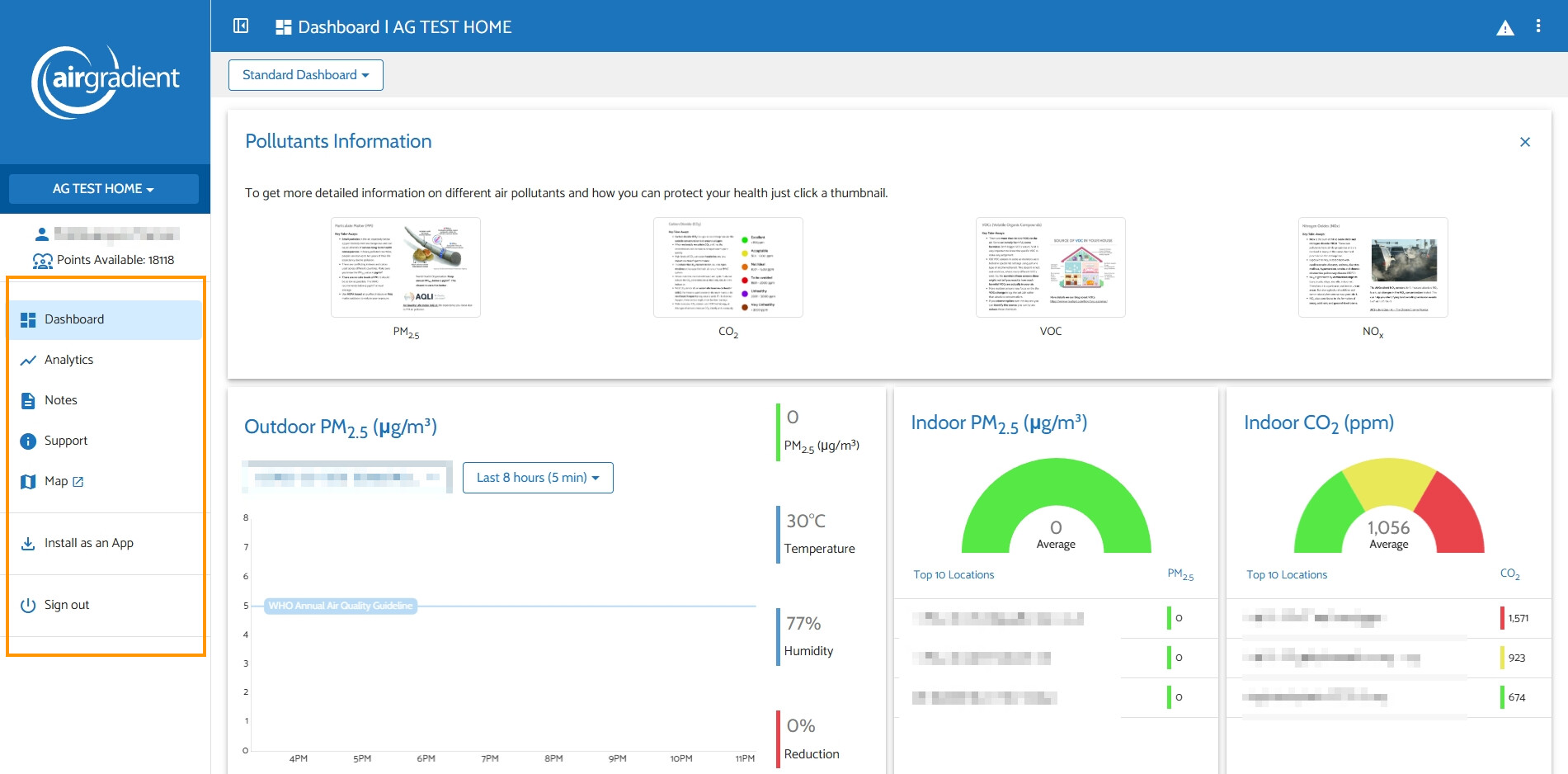
So the basic concept is that when you click ‘Connect a Monitor’ (left) menu on the Dashboard. It will guide you through steps to connect your monitors and they will eventually up and running on your dashboard.
During those processes, ‘Location’ and ‘Hardware’ are silently created behind the scenes.
Now let’s talk about your specific deployment, the most efficient way is to register all the monitors to your Dashboard prior to distribution (using ‘Connect a Monitor’ menu on the AirGradient Dashboard). You don’t need the monitor to be online at this step. You just need their model numbers, and serial numbers. We are just registering (telling the Dashboard to remember that this one monitor is already registered to it, so when the monitor goes online (no matter where it is located in, which Wi-Fi network it connected to), the dashboard will take that data from the monitor). Do this with all your monitors before distribution.
After distribution, the residents can simply connect each AirGradient monitor to their home Wi-Fi (without touching the Dashbord). Once the monitor connected to Wi-Fi that has the internet connection, It will eventually shows up online and report data to your centralized Dashboard.
When all set, you can invite those residents as a Dashboard user (without Admin rights) as we mentioned above, so they can see the dashboard, but they won’t be able to add, remove, change settings.
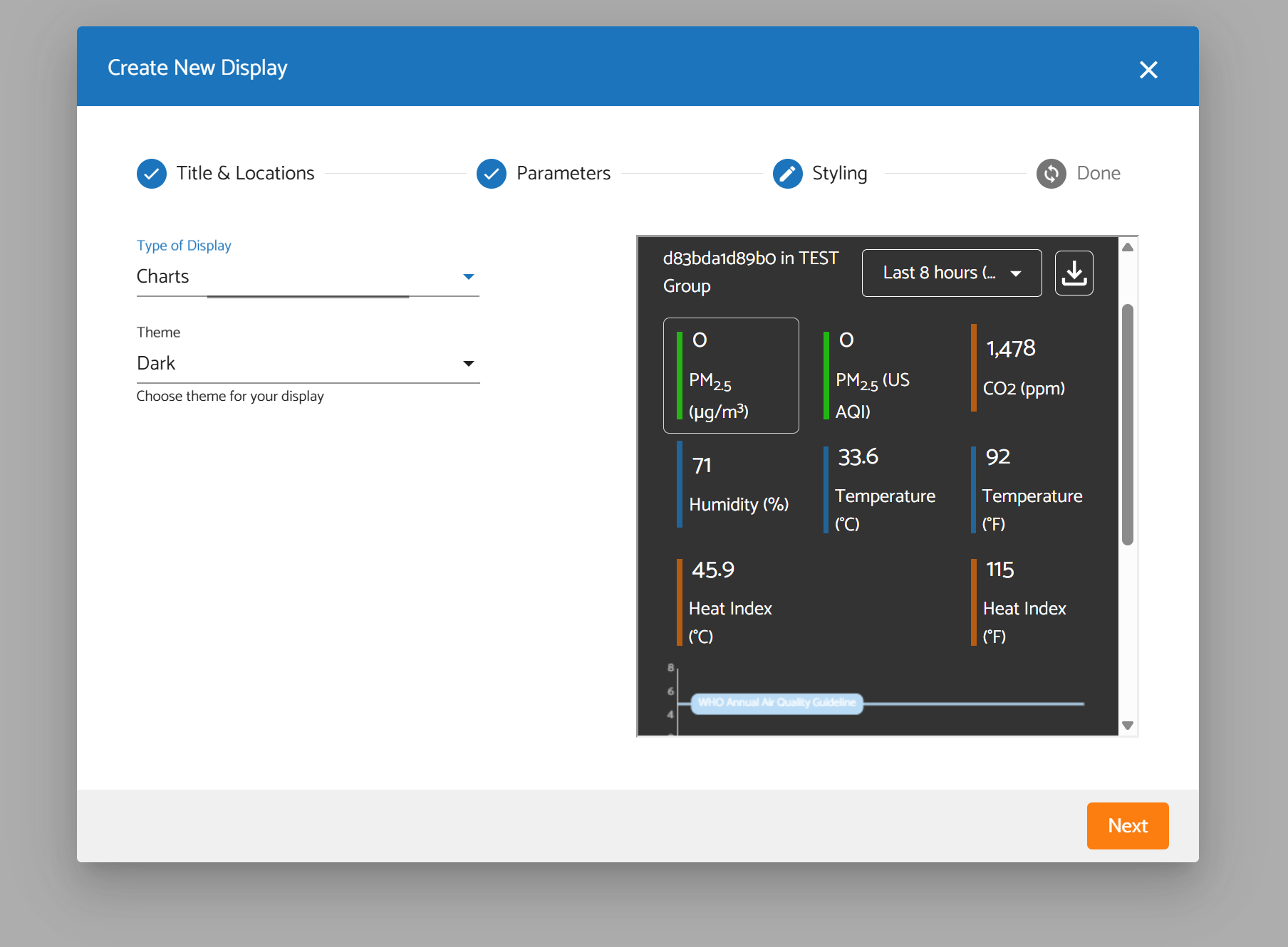
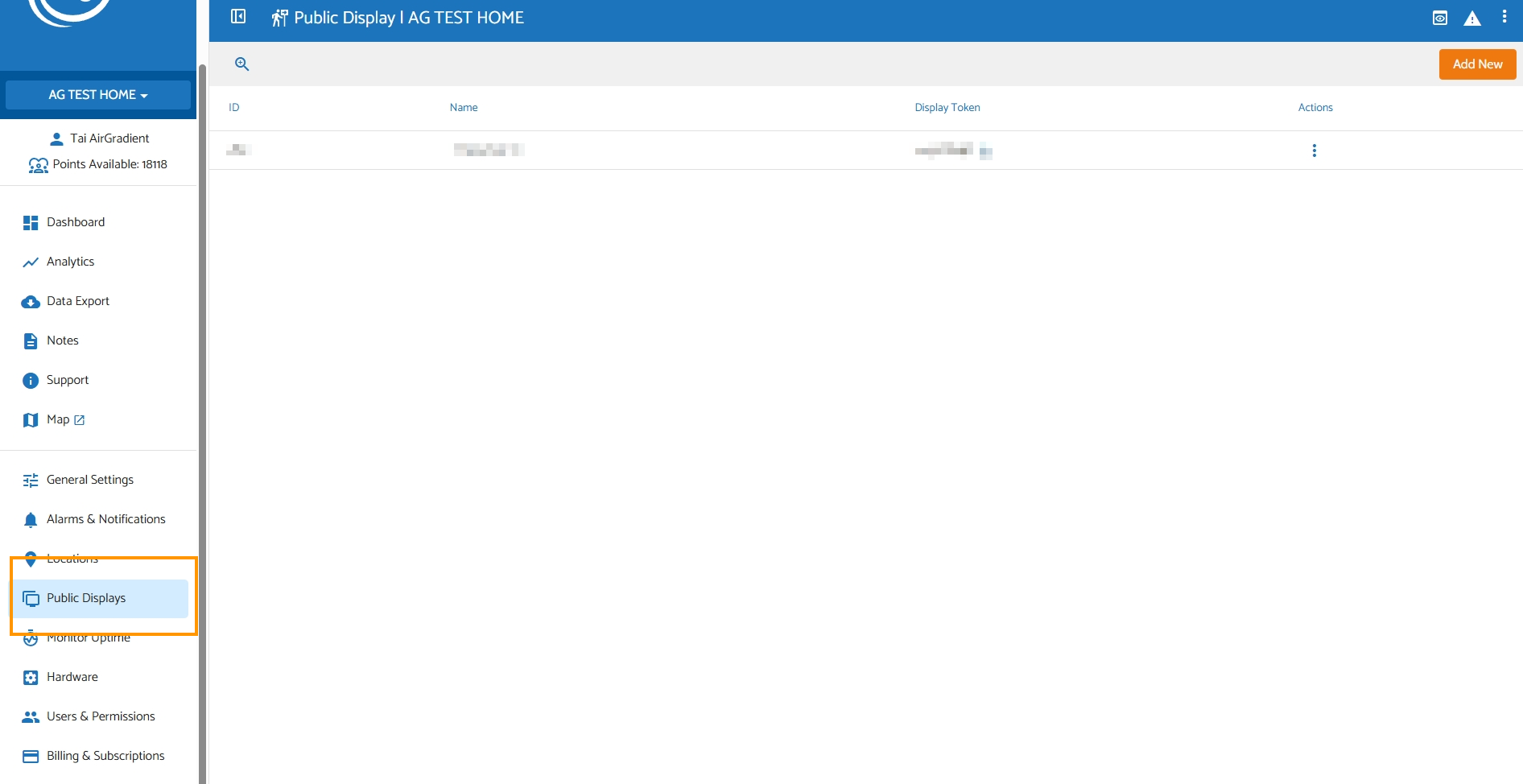
Alternatively, if you prefer not to assign dashboard user to them (just want them to access area-specific air quality data without accessing your whole Dashboard), you can create a ‘Public Displays’ to share the public links with them.
I hope this helps!