@Jakobov Thank you for the ticket! I’ve replied to it. Please feel free to let me know if you have any other questions
Here’s a reference for those who come by with the same question.
You can move your AirGradient monitor to a new room without mixing the history by following the steps below:
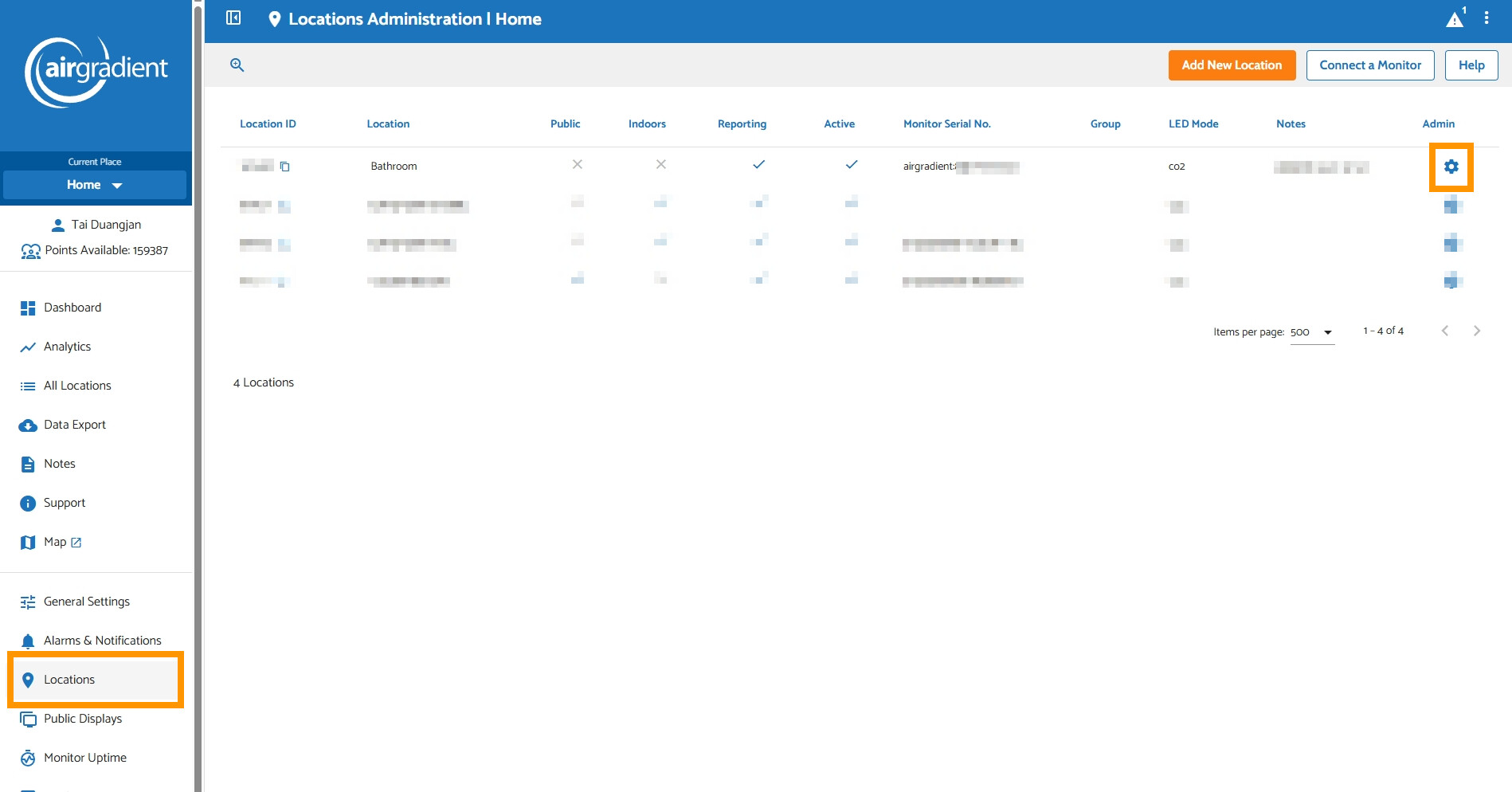
1. Go to your AirGradient Dashboard
2. Select ‘Locations’ on the left menu
3. Click the gear icon (on the far right) of the old location (the location that your AirGradient monitor is currently linked to)
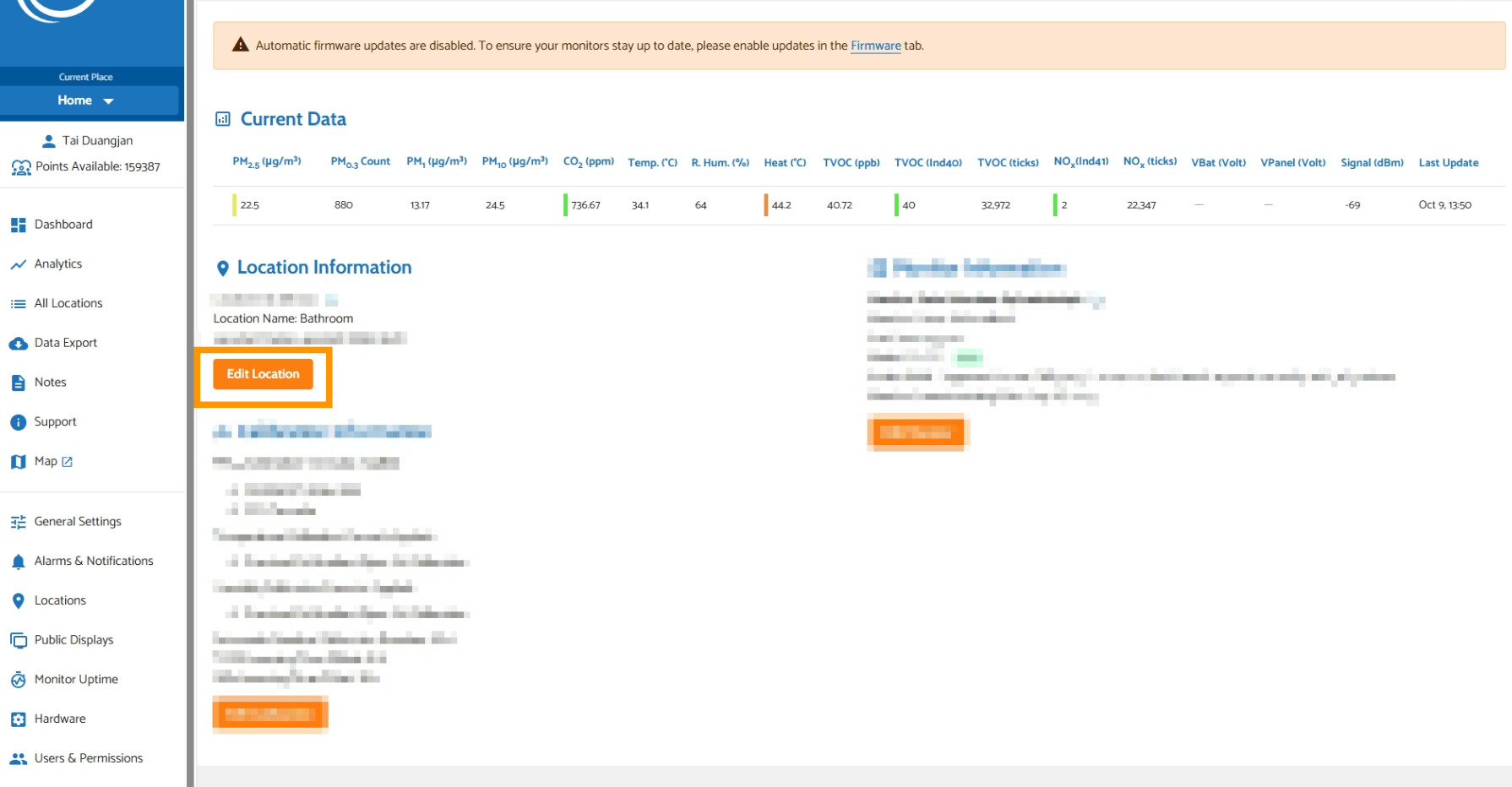
4. Click 'Edit Location’
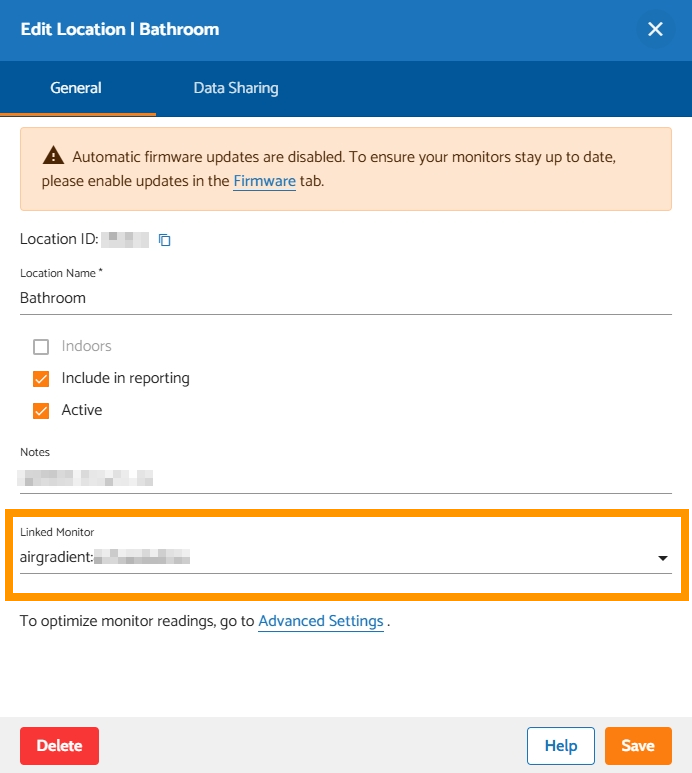
5. Click the ‘Linked Monitor’ dropdown → Select ‘Remove Monitor’ → Click ‘Save’ (This will unlink your AirGradient monitor from the old room, so that it can be linked to the new room)
6. Now, we are going to create a new room (Location) → Go to ‘Location’ on the left menu again
7. Click 'Add New Location’
8. Name your room in the ‘Location Name’ field
9. Click the ‘Linked Monitor’ dropdown → Select your AirGradient monitor → Click 'Save’
10. Now you have created a new room (Location) with your AirGradient monitor linked to the new room.
Your old room’s location entity will be preserved (without an air monitor linked to it, so it will be displayed as an offline location).
Please feel free to Contact Us if you find any issues or have any questions.